
HOW TO:
organize images with sub folders
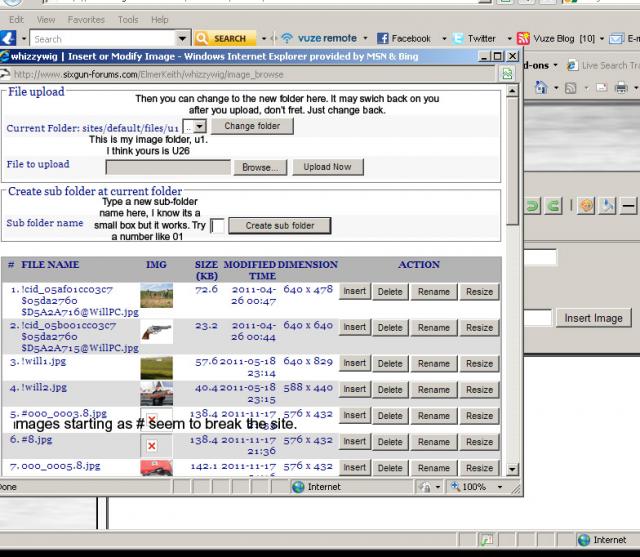
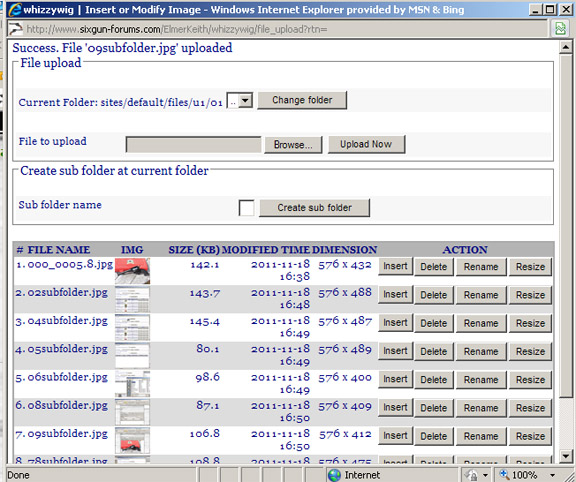
Step 1: notice below my current folder setting, I am user 1 (sites/default/files/u1)
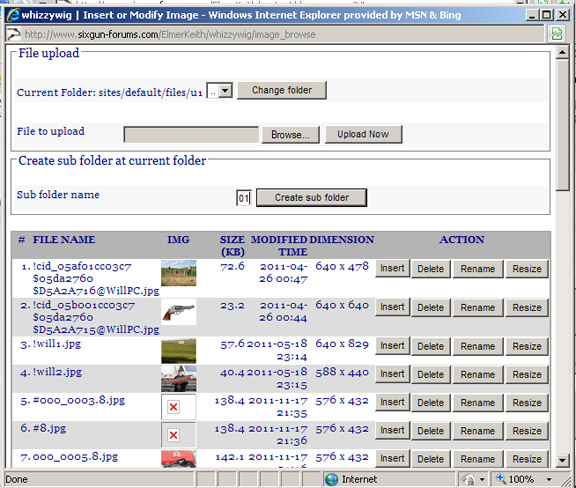
Step 2: notice below I typed "01" into the "Create sub folder" box. Keep it simple, big names don't seem to work.
Step 3: now I use the drop down box, select "01", and click "change folder"
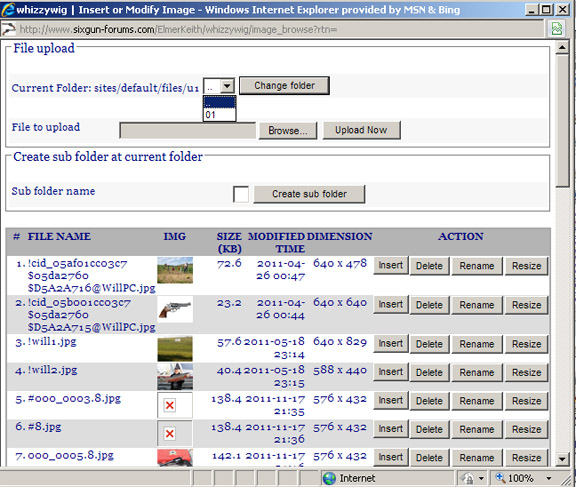
Step 4: now I am in the "01" sub directory, which is empty.
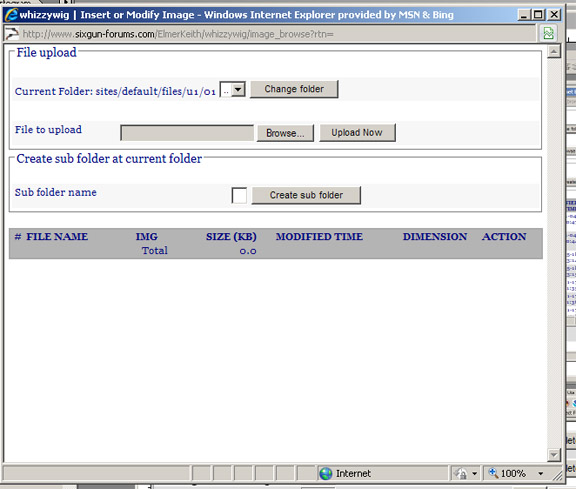
Step whatever: browse, select, and then upload
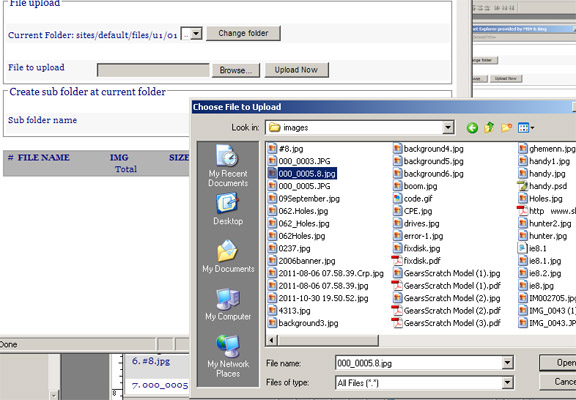
and enter "insert"
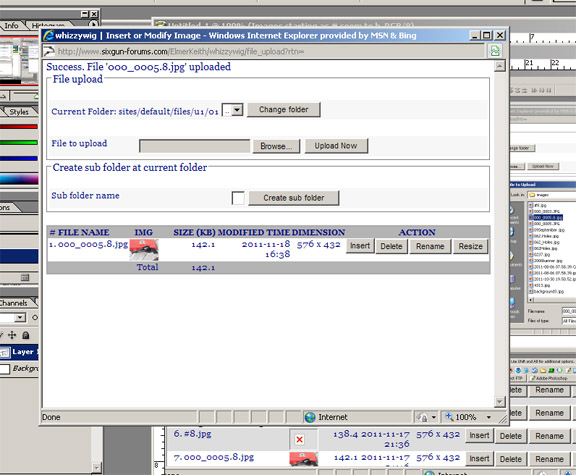
and "insert" again
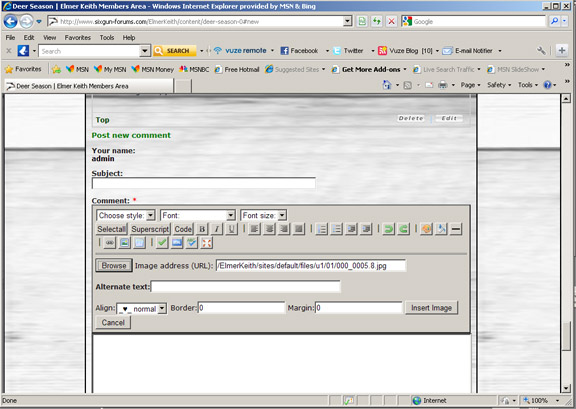
Wala
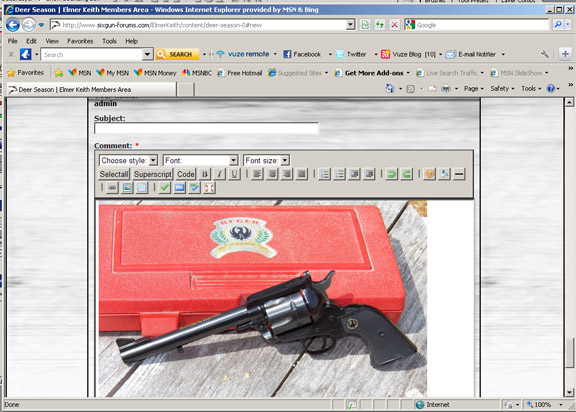
my 01 subfolder populated with screen shots for this post
Notes:
Every time you go back to the image window you end up in your default directory, each time you will have to "change folder"
If you want to upload multiple images, you can upload them all before inserting, save a little time .
If you end up in some strange folder, just exit out and when you click the image button again, you will be in your default folder.
Using sub folders for image organization
- Login to post comments
Fri, 11/18/2011 - 15:16


Recent comments
32 weeks 1 day ago
1 year 5 weeks ago
1 year 15 weeks ago
2 years 8 weeks ago
2 years 15 weeks ago
2 years 15 weeks ago
5 years 1 week ago
5 years 2 weeks ago
5 years 17 weeks ago
5 years 33 weeks ago